NovaByte Technology
Download
Home About Us Services Products Tech Stack Contact Download
Lab Management System · Server & Workstation Setup

Installation Guide

Lab Management System runs on one shared lab database with any number of computers connecting over your local network. This guide covers the server setup, connecting workstations, activating your licence and first-day configuration.

NovaPharma · PharmacyLab Management System · Laboratory

1. How Lab Management System is networked

There is one database, hosted on a single computer (the “server”). Every reception and lab computer runs the app and connects to that database over the LAN, so patients, orders and results are shared live. The database is installed for you by the setup.

LAB SERVER PC
Lab database (MariaDB, port 3306)
LAN switch / router
Reception
Workstation
Laboratory
Workstation
Billing desk
Workstation
Single computer
Choose Lab SERVER during setup. The database and the app are on the same PC and connect automatically.
Several computers
Choose Lab SERVER on one computer only. Choose WORKSTATION on all the others and point them at the server.

2. Requirements

ItemRequirement
Operating systemWindows 10 or Windows 11, 64-bit. Setup needs administrator rights.
.NET runtime.NET 10 Desktop Runtime is included in the installer and installed automatically if missing. No internet needed.
DatabaseMariaDB is included in the installer and installed on the server PC as the LabMySQL service. No XAMPP or separate download.
Server addressGive the server PC a static IP or a DHCP reservation, e.g. 192.168.1.10. Workstations connect by this address (or the PC name), so it must not change.
NetworkAll computers on the same LAN. Wired Ethernet is recommended for the server.
PortTCP 3306 on the server. Setup opens it in Windows Firewall for the local subnet only.
InternetNeeded to activate your licence key and to re-verify it. The app keeps working for up to 7 days if the connection is down.

3. Set up the SERVER

Do this once, on the computer that will hold the database. Keep it switched on while the lab is working.

  1. Download the installer from the private link in your email and run LabManagementSystem-Setup. Accept the licence agreement.
  2. On the Computer role page choose Lab SERVER.
  3. Finish the wizard. Setup installs the .NET runtime if it is missing, copies the app, unpacks the bundled database, creates the lab database and login, and opens the firewall for your local network. This takes about a minute.
  4. When it finishes, a summary window shows the server address, port, database name, user and password. Write them down: every workstation needs them.
  5. Start Lab Management System. The login screen should show Database connected.
Lost the summary? It is saved on the server in C:\ProgramData\LabManagementSystem\dbinfo.txt, and can be shown again from the login screen: DB SETTINGS → Load saved login.
Default sign-in: admin / admin123. Change this password the first time you sign in (top-right menu → Change password).

If the database setup did not finish, use Start menu → Lab Management System → Set Up Database Server to run it again. It is safe to re-run: an existing database is kept.

4. Set up each WORKSTATION

Repeat on every other computer that will use the system.

  1. Run LabManagementSystem-Setup. On the Computer role page choose WORKSTATION.
  2. Start Lab Management System. The login screen will say the database is not connected. Click DB SETTINGS.
  3. Enter the details from the server's summary, then save:
FieldValue
ServerThe server's static IP or computer name, e.g. 192.168.1.10
Port3306
Databaselabdb
Userlabuser
PasswordThe password from the server's summary
  1. The status should change to Database connected. Sign in with your own user.
The database password is stored on each workstation encrypted for the signed-in Windows user. Give the password only to computers that need it.

5. Activate your licence key

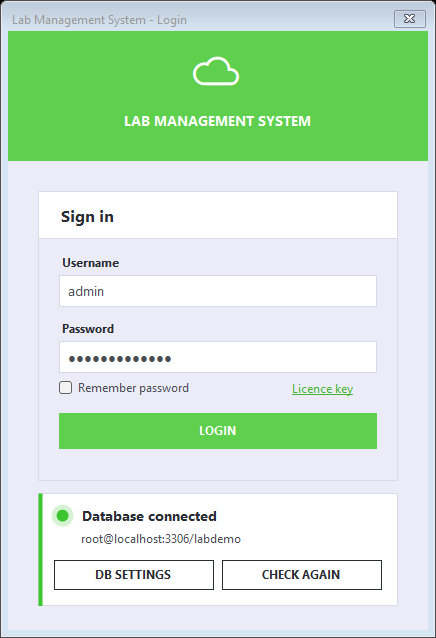
Each computer needs its own activation. The first time you press Login, Lab Management System asks for your licence key.
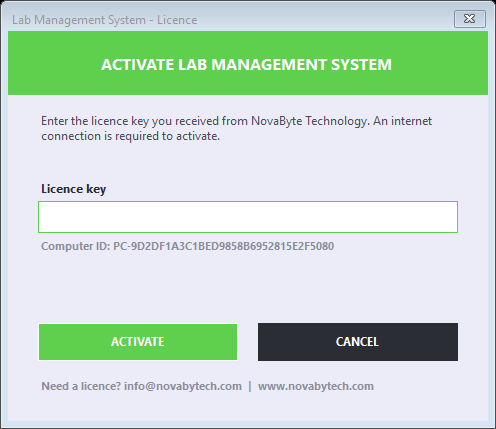
  1. Enter the key from your email. Lab keys start with LB-, for example LB-7KQ4-M2XD-9HTP-W3RC.
  2. Press Activate. The app contacts the licence server (internet required) and locks the key to this computer.
  3. After activation you are not asked again. You can change the key later with the Licence key link next to Remember password on the login screen.
Lab Management System sign-in screen with the Licence key link
Sign-in screen: database status and the Licence key link
Activate Lab Management System window
The activation window
Test licence: the key in your download email is a test key with an end date. When it ends, sign-in stops and shows a message. Contact us to continue with a full licence.

The Computer ID shown in the activation window identifies this PC. If you replace a computer, contact us and we will release the old activation.

6. First-day setup

  1. Change the admin password (top-right menu → Change password).
  2. Open Settings and enter your lab name, address and phone, upload your logo, and set the thank-you note. These appear on reports and receipts.
  3. Open User Management and create a user for each person. Roles are Admin (everything), Reception (patients, orders, billing) and Lab (results, test catalogue).
  4. Open Test Categories and Test Management to review the sample tests and prices that come with the app, then add yours. To load many tests at once, use Download sample CSV, fill it in and import it.
  5. Register a test patient and create a test order to check the whole flow, including printing a report.

7. Troubleshooting

A workstation says “Database not connected”

Check, in order: the server PC is switched on; the server address, port, database, user and password in DB SETTINGS match the server's summary; the workstation can reach the server (Test-NetConnection 192.168.1.10 -Port 3306 in PowerShell should say TcpTestSucceeded: True); and the server's firewall rule “Lab Management System MySQL” exists (re-run Set Up Database Server to recreate it).

It worked, then stopped after a restart

Usually the server's IP address changed. Give the server a static IP or DHCP reservation, or connect by computer name instead of IP.

“Access denied” or “no permission on database”

The saved login no longer matches the server. On the server, run Set Up Database Server from the Start menu to re-create the login, then use DB SETTINGS → Load saved login.

“This licence key is for NovaPharma, not Lab Management System”

You entered a NovaPharma key. Each key works in one product only. Use the key that starts with LB-, or contact us if you did not receive one.

“This licence is already activated on another computer”

A key is locked to the first computer that activates it. To move it to a new PC, contact NovaByte Technology and we will reset it.

“Your test licence has ended” / “account is inactive”

The test period is over or the account has been deactivated (for example for non-payment). Contact NovaByte Technology to continue.

“Cannot reach the licence server”

The computer has no internet connection. If it was verified in the last 7 days you can still sign in. Otherwise connect to the internet once and sign in again.

8. Security & backup

Want us to set it up for you?

We can configure the server and every workstation remotely. Join for the download and our team will help with the rollout.

Download Lab Management System View Documentation